Aaluman
JPG to PDF Converter
Drag & drop or click to select files
📖 About the JPG to PDF Converter
Our JPG to PDF converter is a powerful, browser - based tool that lets you seamlessly convert images to PDF documents or extract images from PDF files. Whether you need to combine multiple photos into a single PDF for a presentation, or you have a PDF brochure and want to use its images separately, this tool handles it all—with privacy and speed.
Key Features:
- Two‑Way Conversion: Switch between JPG → PDF and PDF → JPG modes with a single click.
- Drag & Drop Upload: Intuitive file selection; visual feedback when dragging files.
- Multiple File Support: Upload several images at once to create a multi‑page PDF.
- Preview & Removal: See thumbnails of your files and remove any before conversion.
- Quality Control: For PDF → JPG, adjust the output JPEG quality (10% to 100%) to balance file size and clarity.
- Flexible Download: After conversion, the Download button is always ready. For JPG→PDF it saves the PDF; for PDF→JPG it saves a ZIP of all pages (bulk download). Plus, each extracted page has its own JPG button for selective saves.
- Fast Processing: Uses jsPDF and pdf.js locally; no uploads, no waiting.
- Privacy First: All conversions happen inside your browser. Your files never leave your device.
This tool is ideal for students compiling research materials, professionals creating reports, designers extracting assets, or anyone who needs a quick, reliable way to switch between image and PDF formats. Best of all, it’s completely free and works offline after the first load.
📋 Step by Step Guide
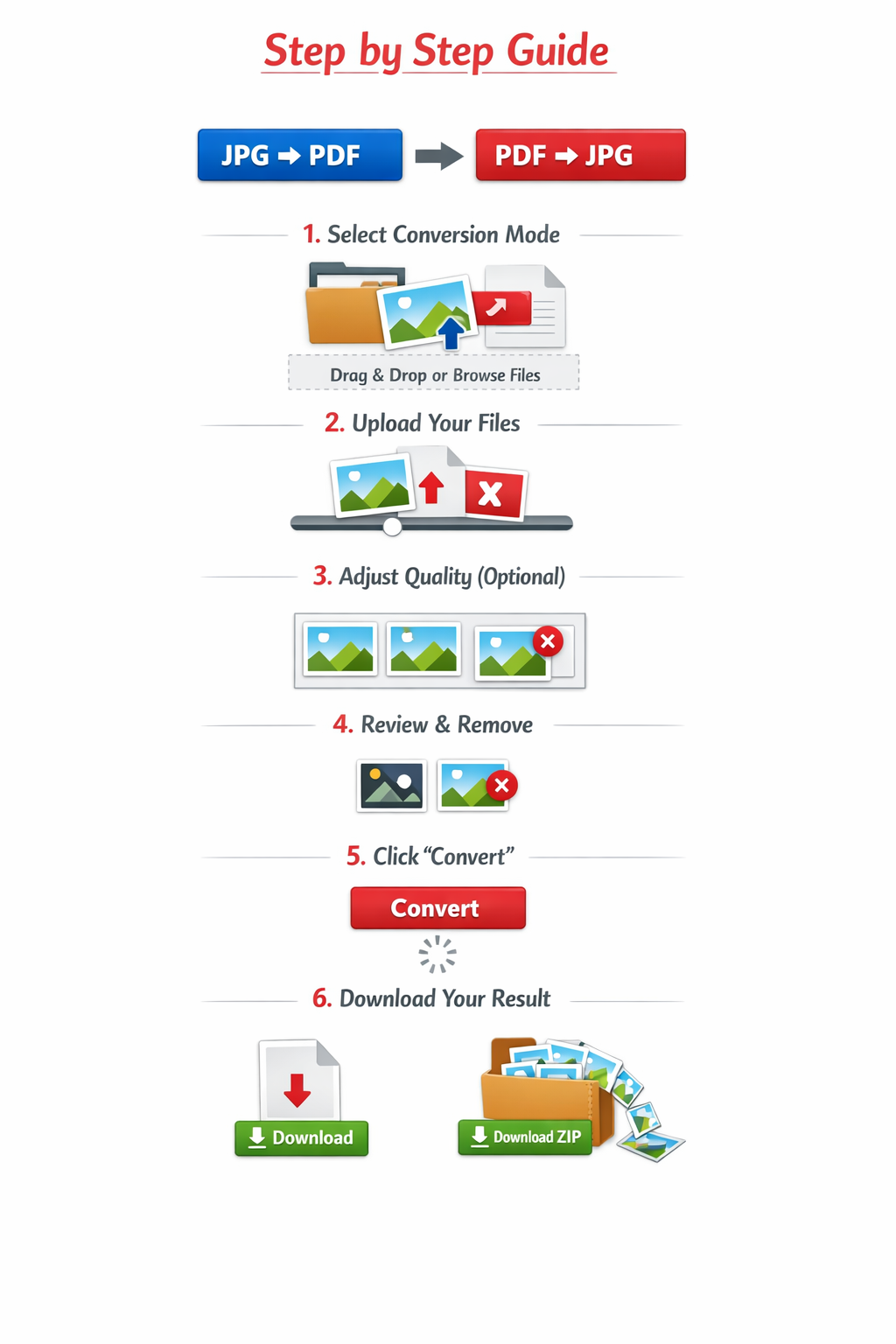
- Select your conversion mode: Click either “JPG → PDF” or “PDF → JPG”. The interface adapts automatically.
- Upload your files: Drag files into the upload area or click to browse. For JPG → PDF, you can select multiple images (JPG, PNG). For PDF → JPG, select a single PDF.
- Adjust quality (optional): If you’re in PDF → JPG mode, use the slider to set the desired JPEG quality. Higher quality gives larger files; lower quality reduces size.
- Review your files: Thumbnails appear. Hover over any file and click the red “✕” to remove it from the list.
- Convert: Click the “Convert” button. A loading spinner will appear while processing—this usually takes a few seconds, depending on file size and number of pages.
- Download your result: After conversion, the Download button becomes active. Click
it to save the final file.
- For JPG → PDF: you get a single PDF file.
- For PDF → JPG: you get a ZIP file containing all extracted JPGs. Additionally, each extracted page is shown below with its own download button if you only need a few.
Pro Tips: For best results, use images with a resolution under 4000x4000 pixels. For PDF extraction, the tool renders pages at 1.5x scale to ensure good quality; you can adjust the quality slider to fine‑tune file size. If you encounter any issues, simply refresh the page and try again. All processing is local, so there’s no risk of data leaks.
💡 Real Life Examples & Use Cases
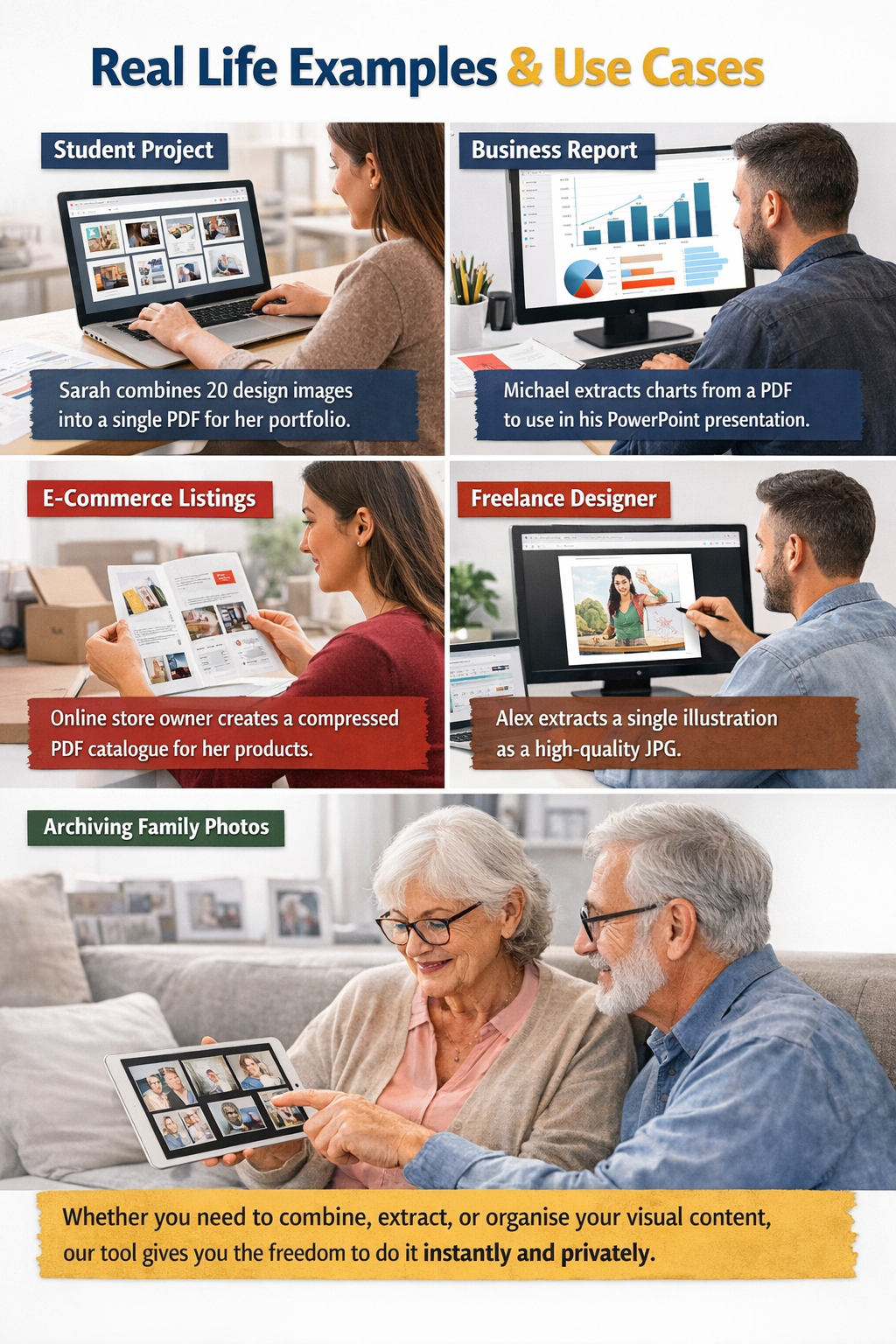
Student Project: Sarah is a university student who needs to submit a portfolio of her design work. She has 20 high‑resolution images of her projects. Instead of attaching 20 separate files, she uses the JPG → PDF converter to combine them into a single PDF. The result is a clean, professional document that her professor can easily scroll through.
Business Report: Michael, a marketing manager, receives a 50‑page PDF containing charts and infographics. He needs to use several of those graphics in a PowerPoint presentation. Using the PDF → JPG tool, he extracts each page as a JPG, then selects the ones he needs. The main Download button gives him a ZIP of all pages, but he can also pick individual JPGs with the extra buttons.
E‑commerce Product Listings: An online store owner wants to create a downloadable catalogue. She compresses product photos with our Image Compressor, then merges them into a PDF using this tool. The PDF is lightweight, loads quickly, and looks great on any device.
Freelance Designer: Alex receives a PDF brochure from a client and needs to extract a specific illustration. He uploads the PDF, adjusts the quality to 100% for the best reproduction, and downloads only that one page using the individual JPG button. No extra software needed.
Archiving Family Photos: Maria wants to share a collection of 50 scanned old photos with her relatives. She uses JPG → PDF to create a single PDF, then emails it. The family can view the memories as a digital album without having to download dozens of individual files.
These scenarios show how versatile and essential a reliable converter can be. Whether you need to combine, extract, or simply organise your visual content, our tool gives you the freedom to do it instantly and privately.
📰 The Ultimate Guide to JPG and PDF Conversion
In today’s digital landscape, we constantly juggle different file formats. Two of the most common—JPG (JPEG) and PDF—serve very different purposes. JPGs are perfect for photographs, offering excellent compression and small file sizes, while PDFs are the gold standard for documents, preserving layout across devices. But what happens when you need to combine several JPGs into a single document? Or extract images from a PDF? That’s where a reliable JPG ↔ PDF converter becomes indispensable.
In this guide, we’ll explore the ins and outs of converting between these formats, the benefits of using a browser‑based tool, and practical tips to make your workflow faster and more efficient. Whether you’re a student, a professional, or a casual user, understanding these conversions can save you time and frustration.
Imagine you’ve taken a series of vacation photos and want to share them as a single document. Email clients often struggle with multiple large attachments, but a PDF can neatly bundle them all. Similarly, you might receive a PDF containing beautiful graphics that you need to use in a presentation; extracting them as JPGs gives you individual images ready for editing. These are just two of countless scenarios where conversion is essential.
Common Use Cases:
- Business Reports: Combine product photos, charts, and text into a professional PDF portfolio.
- Education: Convert scanned notes or textbook pages (as images) into a searchable PDF.
- Design & Marketing: Extract images from PDF brochures for use in social media or websites.
- Archiving: Store a series of images as a single PDF for easier organization.
How Our Converter Works
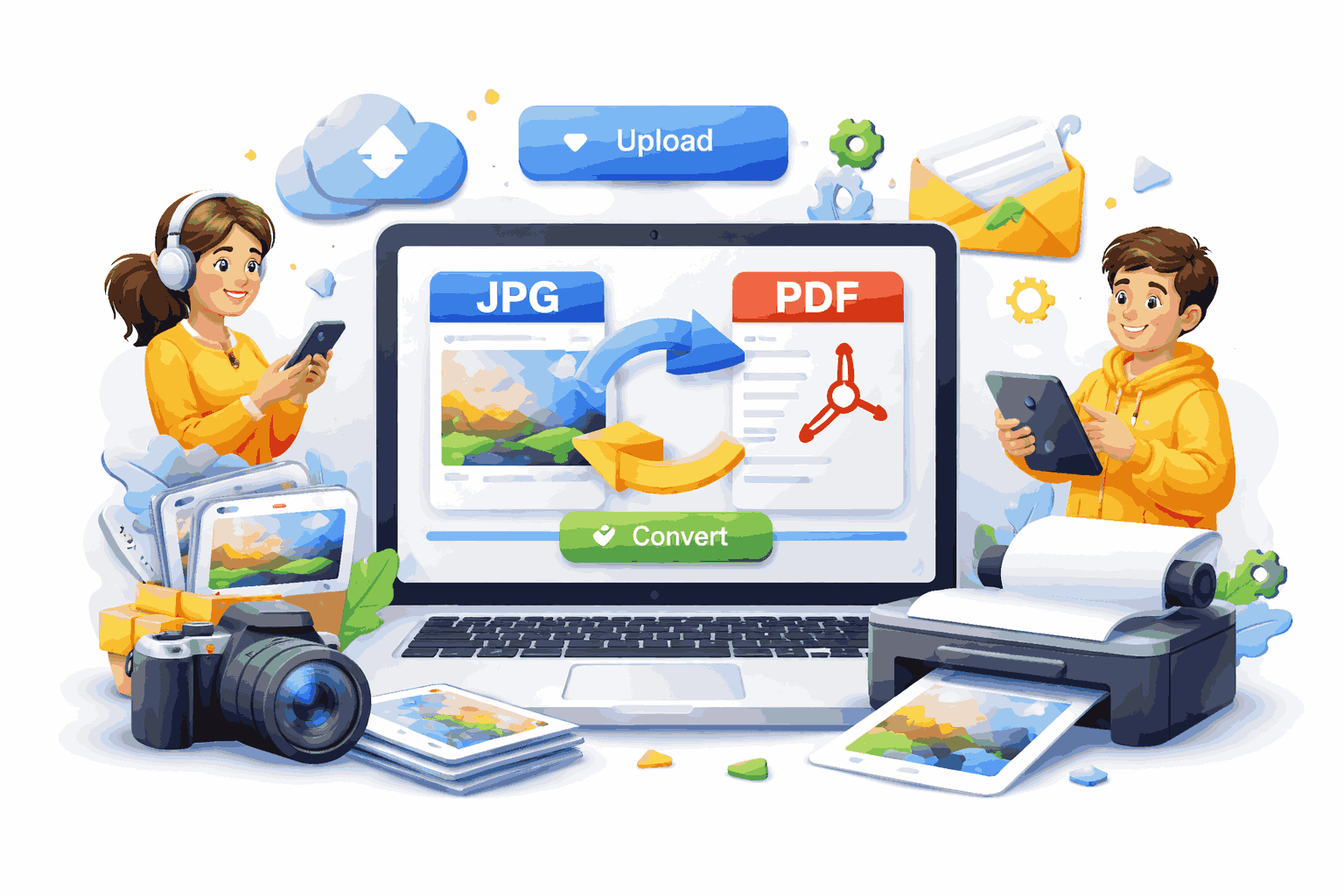
Our tool leverages two powerful open‑source libraries: jsPDF for creating PDFs from images, and pdf.js (the same engine behind Firefox’s PDF viewer) for rendering PDF pages as images. All processing happens locally in your browser, meaning your files never leave your device. This ensures privacy, speed, and no file size limits.
For JPG → PDF, we take each image, convert it to a standard JPEG using a canvas, scale it to fit the PDF page while maintaining aspect ratio, and add it as a new page. You can upload multiple images, and the tool will combine them in the order you provide. For PDF → JPG, we render each page to a canvas and then convert it to a JPEG with your chosen quality setting. Instead of packing all images into a ZIP, we display each page with its own download button, giving you full control.
Choosing the Right Quality Setting
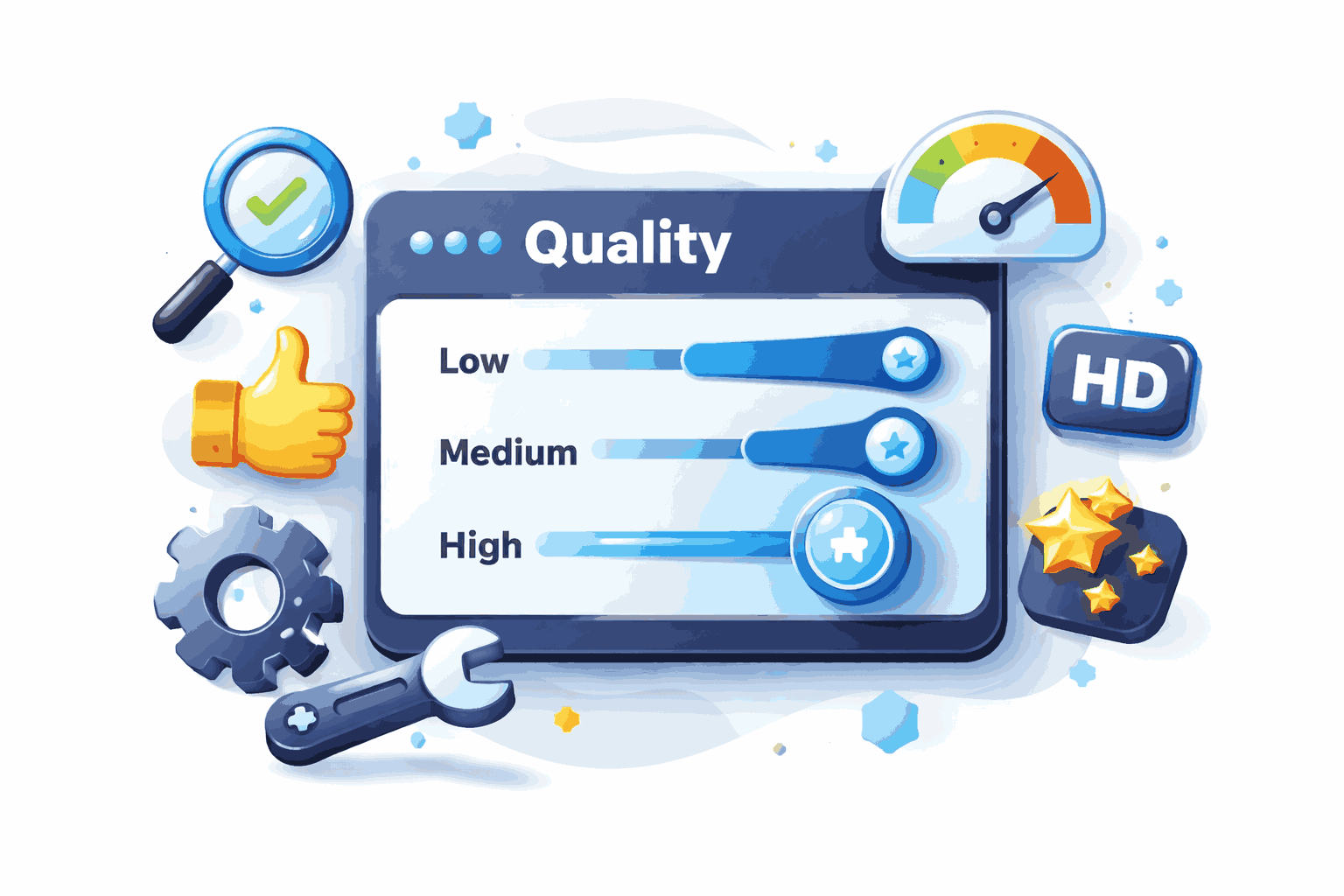
When converting PDF to JPG, the quality slider gives you control over file size versus image fidelity. At 100%, you get near‑perfect reproductions but larger files. At 70%, the file size drops significantly while most details remain sharp. For text‑heavy pages, a lower quality (around 60%) is often sufficient. Our default 90% offers a great balance for most use cases.
For JPG → PDF, there’s no quality setting because images are embedded directly into the PDF. However, you can use our separate Image Compressor tool to reduce the size of your JPGs before converting to PDF, if needed.
Privacy and Security
One of the biggest concerns with online conversion tools is privacy. Many services upload your files to external servers, where they can be stored, analyzed, or even sold. Our tool does none of that. Because everything runs locally, you can convert sensitive documents—like contracts, personal photos, or confidential reports—without worry. Once you close the tab, all data is gone. It’s the safest way to handle your files.
Advanced Tips for Power Users
- Batch Processing: You can upload dozens of images at once. The tool will process them in sequence, creating a PDF with all pages.
- Reorder Files: Currently, the order of files is the order you select. If you need to rearrange, simply upload in the desired sequence or use the remove button and re‑upload.
- Combine with Other Tools: After extracting images from a PDF, you can use our Circle Crop tool to create perfect profile pictures, or our Smart Compressor to further reduce file sizes for web use.
Frequently Asked Questions
Can I convert PNG or WebP images? Yes! Our JPG → PDF mode accepts any image format that the browser can render (JPG, PNG, WebP, etc.). They are all converted to JPEG before embedding.
What about password‑protected PDFs? The current version does not support password‑protected PDFs. You’ll need to remove the password first.
Is there a file size limit? Since everything runs locally, the limit depends on your device’s memory. For most modern computers, images up to 100 MB and PDFs up to 200 pages work reliably.
Conclusion
Converting between JPG and PDF doesn’t have to be complicated. With a modern, browser‑based tool that respects your privacy, you can achieve professional results in seconds. Whether you’re assembling a presentation, extracting assets, or simply organizing your files, our JPG ↔ PDF converter is here to help. Try it today and experience the speed, simplicity, and security of client‑side conversion.